When you enter a search query in Google, many results appear, often including newsworthy links at the top. These links are temporary but relevant. Google excels at displaying fresh content that matches your search interests. Given that I provide a real-time tour announcement feed, this feature could be beneficial to those searching, and in turn, drive additional traffic from Google to my site. I’ll discuss some insights into the Google News feed before explaining how you can set up your own in less than 15 minutes.
Current Observations
I set up a publisher account on Google News for a primary reason beyond just attracting traffic. After reviewing numerous articles in the news feed, I noticed a common format. Although Google emphasizes user experience, my visits to 90% of these sites revealed the opposite—numerous ads and paywalls overwhelmed me. Often, the clutter of ads on a page prompted me to close the tab or hit the back button immediately. I want to offer a better user experience on my site.
The content I provide is both newsworthy and current. My goal is to assist those searching for tour announcement information by providing what they need without the bombardment of ads. While it’s true that many ads on these sites are served by Google, possibly influencing their prominence in search results, I cannot be sure. Many sites offer just a sentence or two, which is hardly helpful. I strive to offer more substantial information, hoping to fully satisfy visitors’ needs.
Go to the Source
Before we start the tutorial, I recommend checking out the full news feed to see what I’m referring to. If you visit news.google.com, you’ll find different categories and links. This site aggregates all news events that appear when you search for regular queries. Take a closer look and explore the site. You’ll notice that most of the content comes from the largest news sources. We’ve reached a point where having a variety of news sources is crucial to avoid biased opinions and the spread of incorrect information.
Get On With It
Here’s a video on how I set this up on one of my websites. You can see each step in action. If you need further clarification, continue reading as I outline all the steps below.
For this example, I chose a random site of mine to help clarify what I’m trying to convey to you.
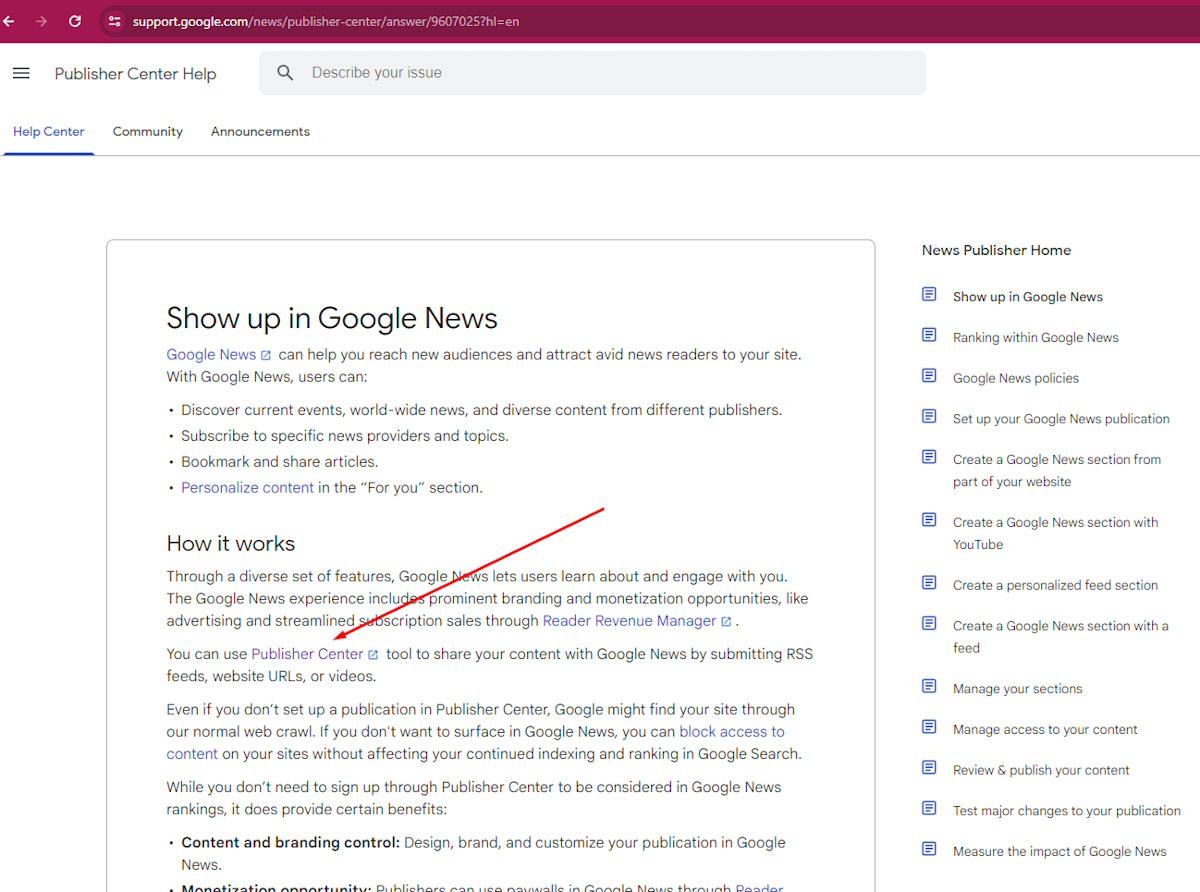 Step One – Visit this page to access a list of requirements, along with several dos and don’ts. Make sure to read as much as possible. About a quarter of the way down, you’ll find a link titled ‘Publisher Center.’ Clicking this link will direct you to the page where you can start the setup process.
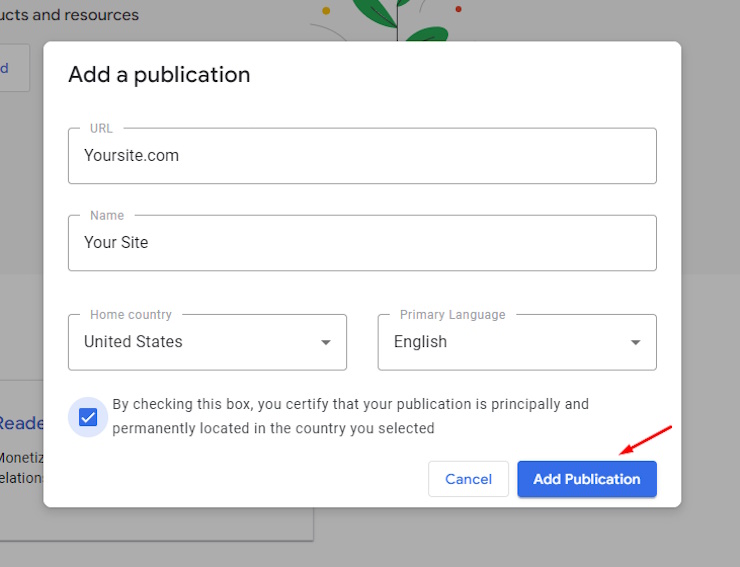 Step Two – Once you reach the getting started page, you’ll see all the domains associated with your Google account. Choose the domain you wish to work with. Next, enter a name for your project—this can be whatever you prefer. Make sure to specify your home country in the settings. If your primary language isn’t English, set the correct language for your content. You will then tick the certification box and press Add Publication.
Step Three – After you have added your publication and assuming your site is already verified with Google, the next step is to input the necessary details. Click the “OPEN” button, which will direct you to the configuration page. Here, you will provide your feed among other items. To modify the Category and Sections, click the “EDIT” button located in the top right corner. This action enables you to make the necessary adjustments to these settings.
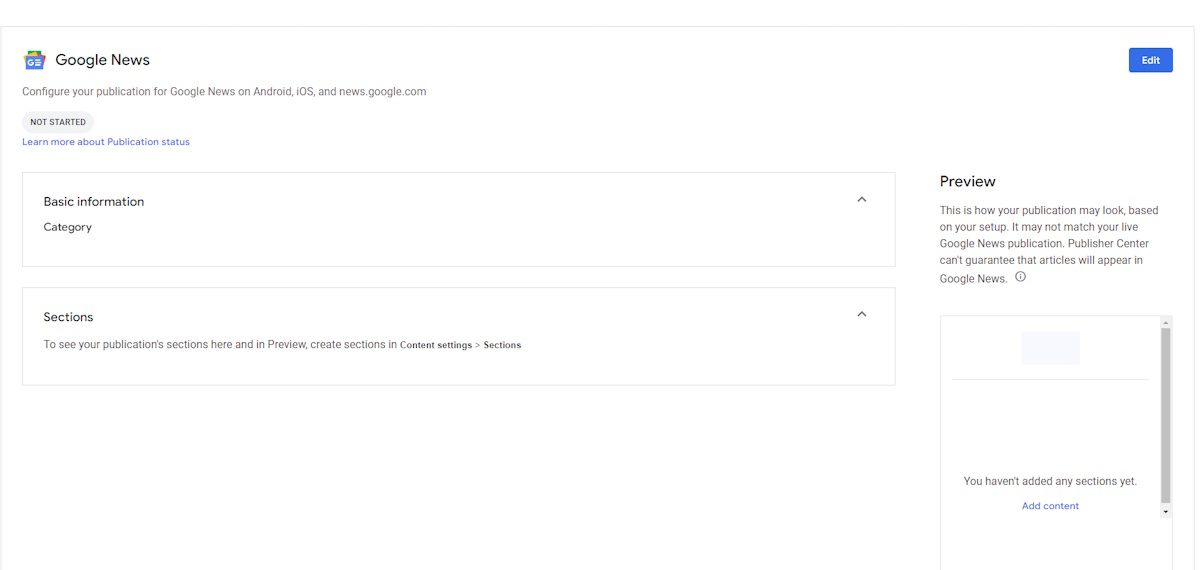 Step Four – On the configuration page, choose the category that best represents your site’s content. Next, select your distribution preferences. While most opt for worldwide distribution, you have the option to restrict certain areas or focus exclusively on specific regions. Once you’ve made these selections, click the “NEXT” button located in the bottom right corner to proceed.
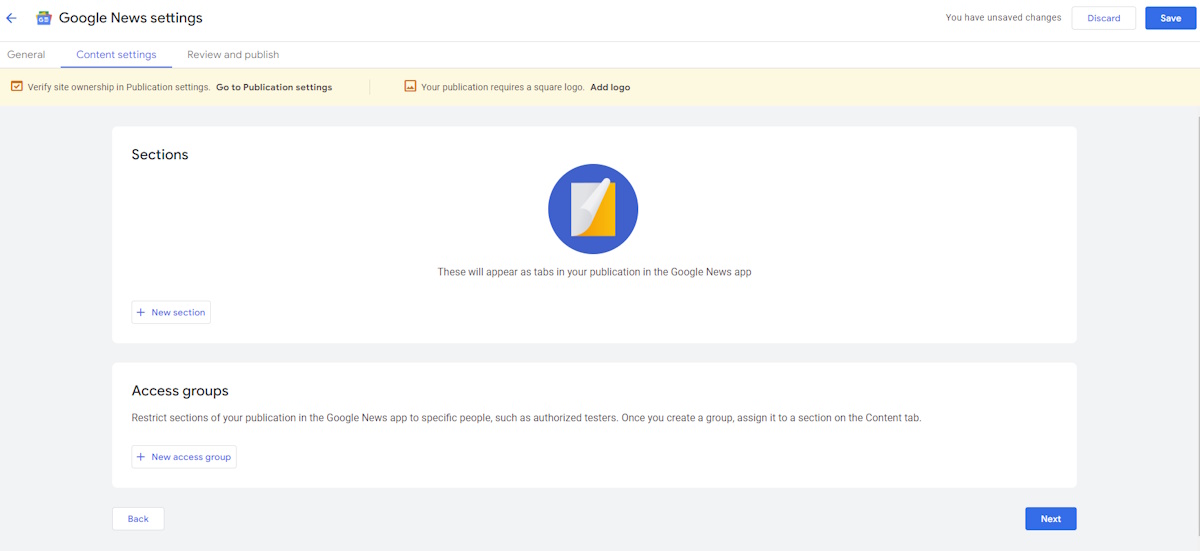 Step Five – You will now be on the settings page. Click on the button labeled “NEW SECTION.” If you are using a WordPress site, choose “Feed” as your option. Enter the title of your feed and the corresponding feed link from your website. If you wish to focus on a specific category within your site, ensure you enter only that particular feed link, such as https://www.yoursite.com/news/feed/. This will ensure that all posts created within the “news” category are pulled into your publication. After entering the details, click “Add” to finalize this section.
Step Six – Add an Access group by entering a working email below. Once this is set up, click “Next” to proceed.
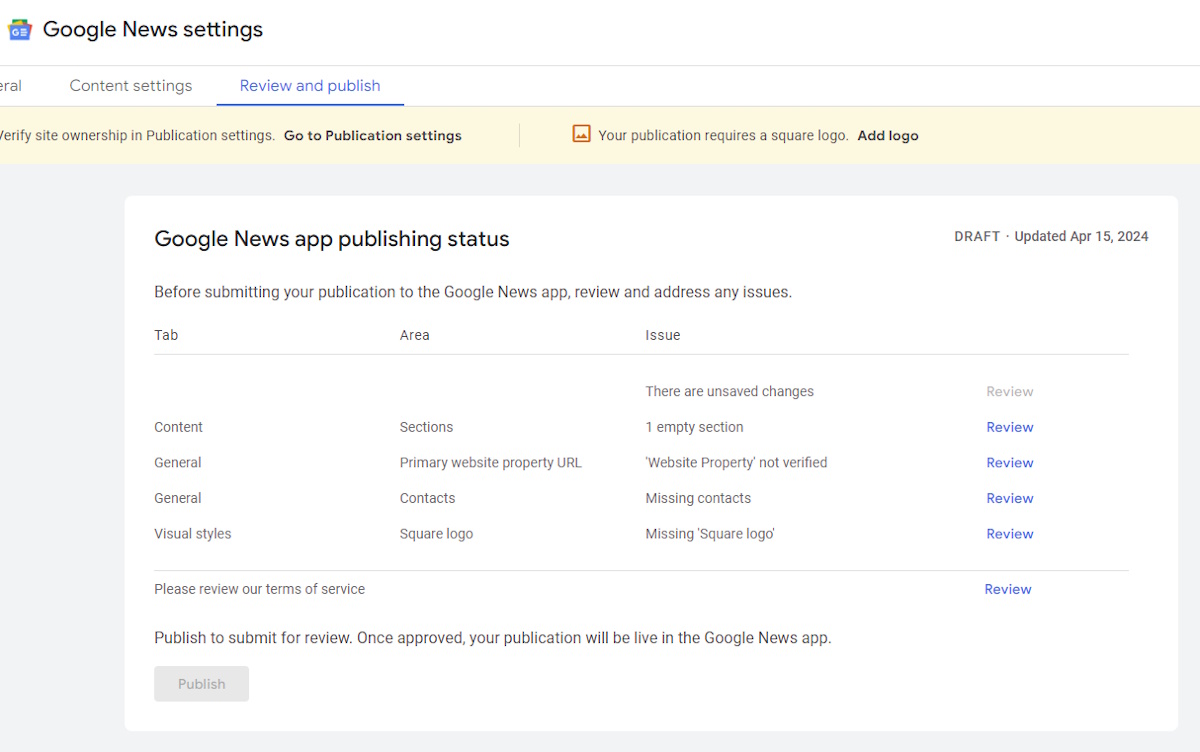 Step Seven – You will now face a series of questions that must be answered before your submission can go into review. Make sure to answer each question and click the “Save” button before pressing “Review” to ensure all information is updated correctly. Return to the content settings and hit the refresh button to help populate the articles for submission. Under “Missing Contacts,” ensure a working contact is provided. If your site is not yet verified, this step must also be completed. In the “Visual Styles” section, upload your logo; a 512×512 resolution should be sufficient. Once these steps are completed, you can move on to the “Review and Publish” section.
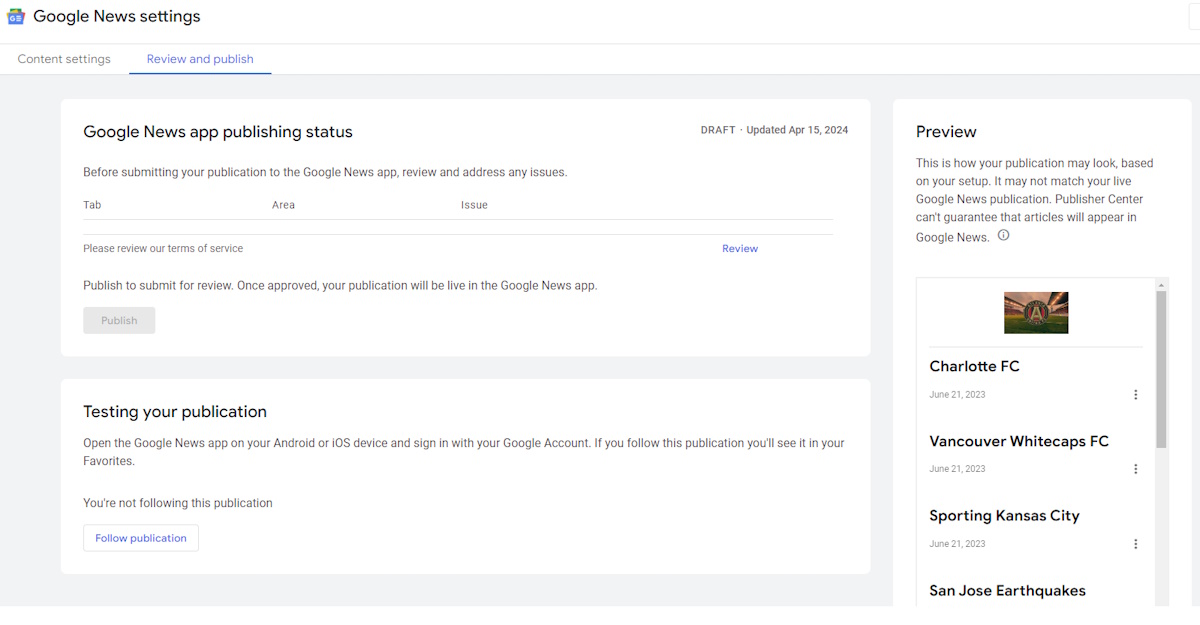 Step Eight – In the “Review and Publish” section, click on the “Review” link. Notice how your posts appear on the right side, confirming the feed is functioning with Google. After reviewing the terms and conditions, fill in your name, email, title, and organization, then click “Submit.”
Step Nine – You will then be taken back to the Review and Publish tab where the PUBLISH button should be blue. This is where you submit your publication which will go into review. You’ll have to wait 1 -15 days before you hear back. It took me 3 total days to get accepted. More on that in the next section. You are now done and your submission will stay in review until you get an email. Either way, you will get an email with your results.
Getting Accepted
You’ve made it this far, and it’s exciting to think about seeing your articles appear in Google News. I share your excitement. Even though I was accepted and you might be too, there’s no guarantee our articles will be featured. The competition is stiff, and all we can do is hope that our content is selected. It’s challenging to acknowledge that Google has control over this aspect. We can aspire to be included in the search results, but we depend on Google once again.
I hope this guide was clear enough to get you started with Google News. There are no guarantees, but if you are one of the lucky ones, you could gain a whole new stream of traffic. If you found the steps a bit confusing, the video should help clarify the finer points. Good luck!
